Overview
Crowbar is a terminal-based web security proxy written in Rust. It intercepts, inspects, and modifies HTTP/HTTPS traffic in real time, entirely from your terminal.
Core capabilities:
- MITM proxy with on-the-fly TLS certificate generation
- Intercept mode: pause, inspect, edit, forward or drop requests
- Request history with filtering and search
- Repeater for manual request replay and editing
- Regex-powered match & replace rules with import/export; CLI validation
- Passive vulnerability scanning
- WebSocket frame capture
- gRPC traffic inspection with protobuf frame extraction and schema-aware
.protodecoding - Session save/load (including macros) and HAR/curl/raw export
- URL, Base64, and Hex encoding tools
- Macro sequences for request chaining
- Default and Vim editor modes, toggle with
F2 - Multi-instance support: run multiple proxies simultaneously
- Configurable resource limits on body size, WebSocket frame size, history size, and connections
- Non-loopback binds refused by default; hardened, private-permission local storage
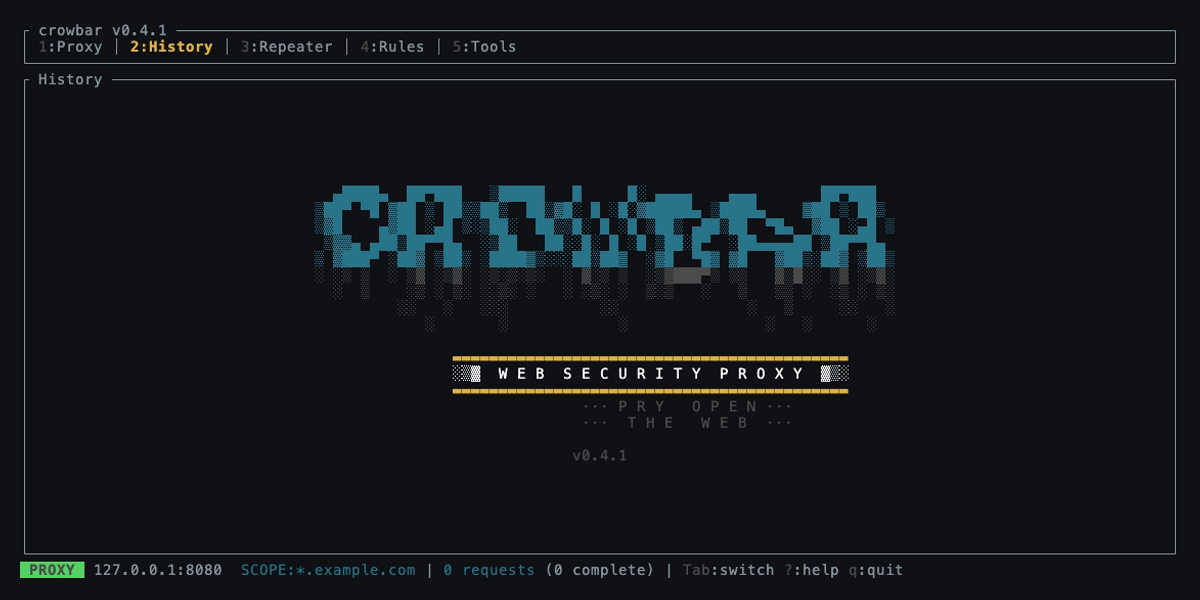
The Crowbar TUI on startup
Supported Platforms
| OS | Architecture |
|---|---|
| Linux (musl) | x86_64, aarch64 |
| macOS | x86_64, aarch64 (Apple Silicon) |
| FreeBSD | x86_64, aarch64 |
| OpenBSD | x86_64, aarch64 |
Installation
Crowbar requires Rust 1.85+ (edition 2024).
$ git clone https://github.com/polera/crowbar.git
$ cd crowbar
$ cargo build --release
The binary lands at target/release/crowbar. Move it somewhere on your $PATH.
Cross-compile
The Makefile supports cross-compilation via cross for multiple platforms:
# Build all release binaries
$ make release

# Build for a single target
$ make linux-amd64
$ make macos-arm64
Binaries are placed in dist/ as crowbar-<version>-<os>-<arch>.
Quick Start
# Start with defaults (127.0.0.1:8080)
$ crowbar

# Custom loopback bind address
$ crowbar --bind 127.0.0.1:9090

# Remote access requires an explicit opt-in (see Security & Resource Limits)
$ crowbar --bind 0.0.0.0:9090 --allow-remote

# Start with intercept enabled, scoped to a domain
$ crowbar --intercept --scope '*.example.com'

# Start with Vim editor mode
$ crowbar --editor-mode vim

# Decode gRPC traffic against your .proto schema
$ crowbar --proto-dir ./protos

# Load a saved session
$ crowbar --load ~/.crowbar/sessions/my-session.json
Point your browser or tool at 127.0.0.1:8080 as an HTTP proxy.
For HTTPS, install the CA certificate first (see below).
CA Certificate Setup
On first run, Crowbar generates a root CA at ~/.crowbar/ca.pem.
To intercept HTTPS traffic, add this CA to your browser or OS trust store.
Export the certificate
# Print to stdout
$ crowbar ca-export

# Save to a file
$ crowbar ca-export /tmp/crowbar-ca.pem
macOS
$ sudo security add-trusted-cert -d -r trustRoot \
    -k /Library/Keychains/System.keychain ~/.crowbar/ca.pem
Firefox
Settings → Privacy & Security → Certificates → View Certificates →
Import → select ~/.crowbar/ca.pem → trust for websites.
Linux (Debian/Ubuntu)
$ sudo cp ~/.crowbar/ca.pem /usr/local/share/ca-certificates/crowbar.crt
$ sudo update-ca-certificates
Proxy & Intercept
The proxy tab is the first thing you see. It shows the current bind address, intercept status, and any pending intercepted request.
With intercept off, traffic flows through and is logged to history. With intercept on, each request pauses for your review. You can:
- Forward: send the request (optionally after editing)
- Drop: discard the request entirely
- Edit: modify method, URI, headers, or body before forwarding
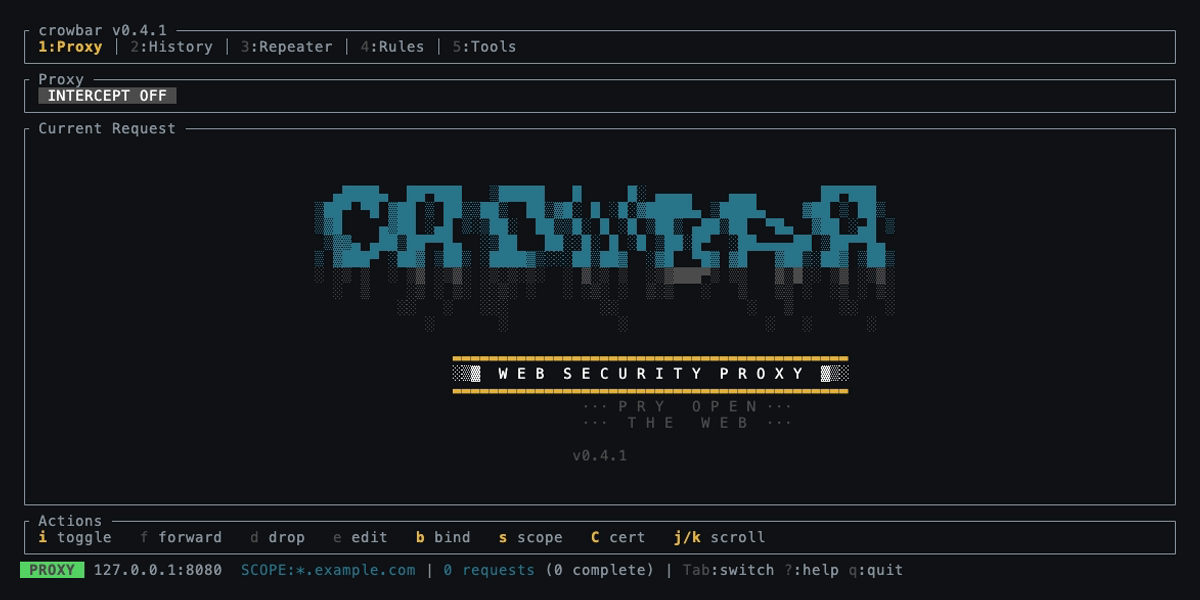
Proxy tab with intercept controls and current request view
Scope
Scope filters limit which hosts are captured. Patterns use glob matching,
so *.example.com captures all subdomains.
$ crowbar --scope '*.example.com' --scope 'api.internal.dev'Runtime reconfiguration
Press b in the Proxy tab to change the bind address, or s to edit
scope patterns, both without restarting Crowbar.
History
Every proxied request/response pair is recorded. The history tab lists all entries
with method, host, path, status, and size. Use / to filter by any field.
From the history view you can:
- Press
Enterto inspect request and response details - Press
rto send a request to the repeater - Press
mto add a request to a macro sequence - Press
c,w, orhto export as curl, raw HTTP, or HAR
Response bodies are syntax-highlighted for JSON and HTML, with pretty-printing applied automatically. The detail view also displays security findings, WebSocket messages, and gRPC frames when applicable.
Repeater
The repeater lets you edit and resend any request manually. Send a request from
history with r, then modify it and hit Ctrl+Enter to send.
- Full request editing: method, URI, headers, body
- Diff view (
d): side-by-side comparison of original vs. edited request - Response display with status, headers, and body
The repeater is ideal for testing payloads, probing API endpoints, and verifying fixes to discovered issues.
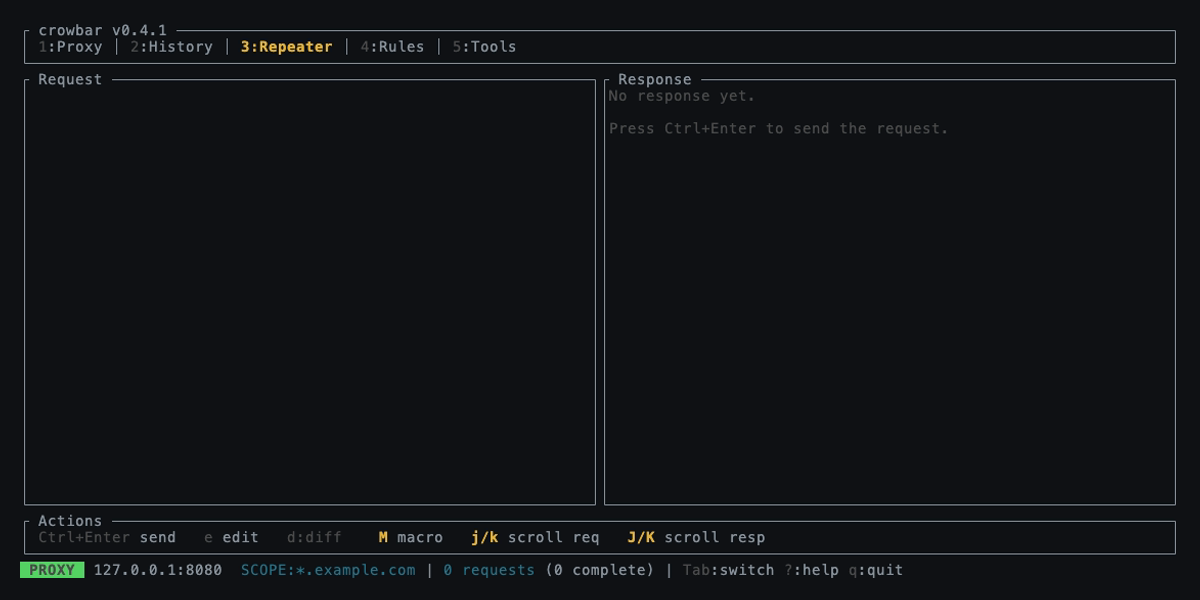
Repeater with side-by-side request and response panes
Match & Replace Rules
Define rules to automatically modify traffic as it passes through the proxy. Rules can target requests, responses, or both.
| Setting | Options |
|---|---|
| Target | Request, Response, or Both |
| Scope | URL, Headers, Body, or All |
| Mode | Literal or Regex |
Each rule has a name, match pattern, replacement string, and can be toggled
on/off with Enter. In the rules tab, press a to add,
x to delete.
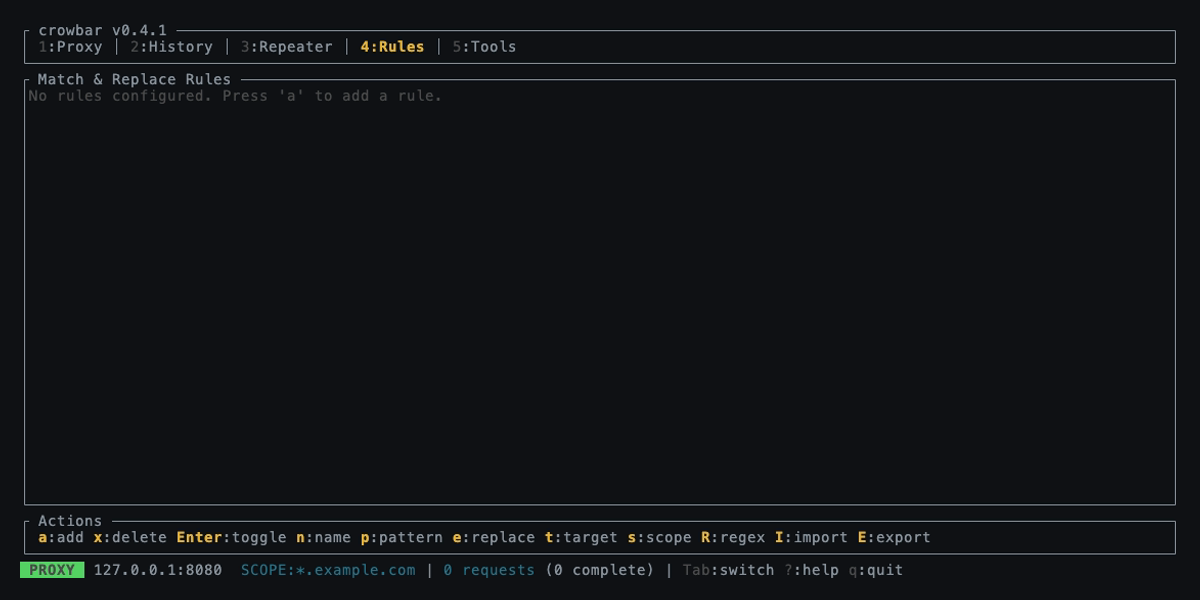
Match & Replace rules configuration
Import & Export
Rules can be saved to and loaded from JSON files in ~/.crowbar/rules/.
- Press
Eto export all current rules; a timestamped file is auto-generated - Press
Ito import rules from a file; enter the path and press Enter to load
Imported rules are merged with existing rules. Tilde expansion (~/) is
supported in import paths.
Passive Scanner
Crowbar passively scans proxied responses for common security issues. Findings are attached to history entries and categorized by severity.
| Check | Severity |
|---|---|
| Missing HSTS header | Medium |
| Missing Content-Security-Policy | Medium |
| Missing X-Frame-Options | Low |
| Missing X-Content-Type-Options | Low |
| Cookie without Secure flag | Medium |
| Cookie without HttpOnly flag | Low |
| Cookie without SameSite flag | Low |
| Server header disclosure | Info |
| X-Powered-By header disclosure | Info |
| 5xx server error responses | Medium |
| Stack trace in response body | High |
Stack trace detection covers Java, Python, Go, and .NET patterns.
WebSocket Support
Crowbar captures WebSocket handshakes and relays frames between client and server. Captured messages are displayed with timestamps, direction (client → server or server → client), and payload content.
Both text and binary frames are supported.
gRPC Inspection
Crowbar automatically detects application/grpc traffic and extracts
individual protobuf frames from the wire format. Each message is displayed with its
compressed flag and length in the history detail view.
gRPC responses are parsed per the HTTP/2 gRPC wire protocol: a 5-byte header (compression flag + 4-byte length) followed by the serialized protobuf payload. Multi-message streams are split into individual frames for inspection.
Schema-aware decoding
Point Crowbar at your .proto files and it decodes gRPC messages with
real field names, enum names, and accurate types instead of the
schema-agnostic heuristic decoder. Crowbar compiles the supplied .proto
directories into a descriptor pool and resolves each
/package.Service/Method path to its request and response message types.
# Decode against your .proto schema (repeat for multiple dirs)
$ crowbar --proto-dir ./protos --proto-dir ./vendor/protos

# Add extra import/include paths for protos that import across roots
$ crowbar --proto-dir ./protos --proto-include ./third_party
With a schema loaded, decoded messages can be edited and replayed in the Repeater
with full re-encoding through a real protobuf encoder. When no schema is loaded or a
message type can't be resolved, Crowbar falls back to the heuristic decoder
automatically. Schema directories can also be set via the proto_dir and
proto_include config keys.
Encoding Tools
The tools tab provides an interactive encoder/decoder. Type or paste input and see the output update in real time.
| Tool | Description |
|---|---|
| URL Encode/Decode | RFC 3986 percent-encoding |
| Base64 Encode/Decode | Standard Base64 conversion |
| Hex Encode/Decode | Hexadecimal byte representation |
Switch between tools with l/h, edit input with e,
and copy output to the system clipboard with Ctrl+Y. Clipboard copy
supports both X11 and Wayland data-control environments on Linux, and copied text
remains available while Crowbar is running.
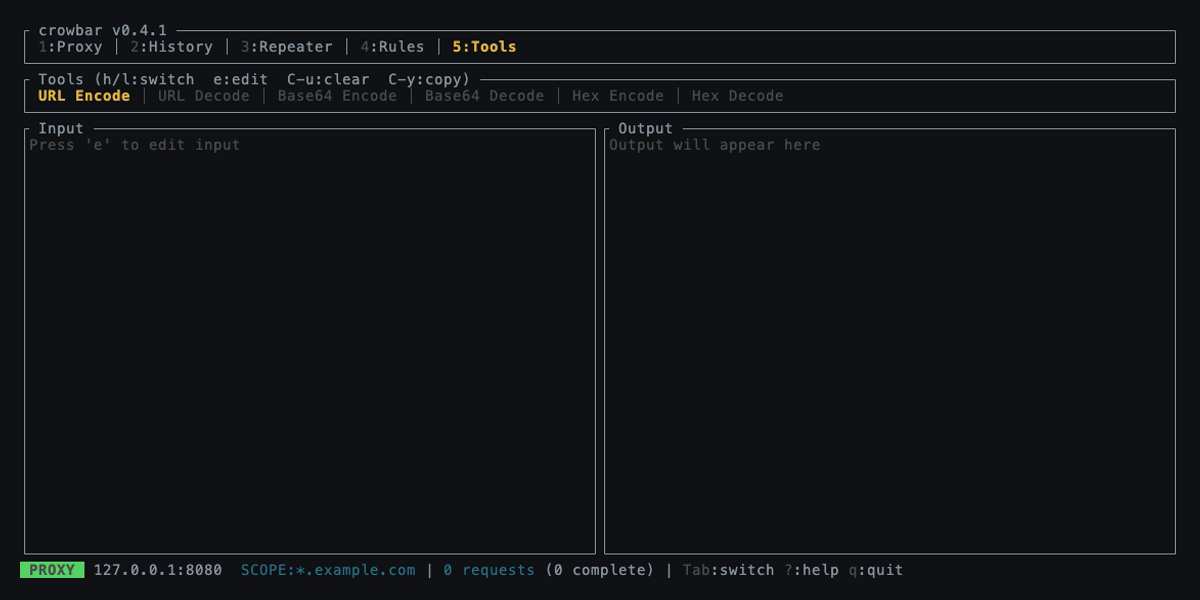
Encoding tools with live input/output
Macros & Sequences
Chain multiple requests into a sequence and execute them in order. Useful for multi-step workflows like login → action → verify.
- Add requests from history with
m - View the macro queue in the repeater tab with
M - Each step tracks status: pending, running, complete, or error
- Remove steps with
xor clear all withX - Macros are persisted when you save a session and restored on load
Editor Modes
All text editors in Crowbar (intercept, repeater, tools, rules) share one of two
editing modes, toggled at any time with F2.
Default mode
Standard text editing with arrow key navigation, Home/End, Ctrl+Home/Ctrl+End,
Backspace/Delete, and Enter for new lines. Press Esc to exit the editor.
Vim mode
Enters normal mode by default. Press
i, a, I, A, o,
or O to switch to insert mode;
press Esc to return to normal mode, and q in normal mode to
exit the editor.
| Key | Action |
|---|---|
h / j / k / l | Move left / down / up / right |
0 / $ | Jump to line start / end |
^ | First non-whitespace character |
w / b / e | Word forward / backward / end |
gg / G | Go to beginning / end of text |
x | Delete character at cursor |
D / d$ | Delete to end of line |
dd | Delete entire line |
dw | Delete word |
u | Undo |
q | Exit editor |
Set the initial editor mode via CLI (--editor-mode vim) or config file
(editor_mode = "vim").
Multi-Instance Support
Run multiple Crowbar instances simultaneously. If the default port (8080) is already in use, Crowbar automatically tries the next available port, scanning up to 25 consecutive ports from the base address. This avoids conflicts with other local services or other Crowbar instances.
Security & Resource Limits
Crowbar has no built-in authentication, so by default it refuses to bind to a
non-loopback address. Pass --allow-remote, or set
allow_remote = true in the config file, to opt in. Only do this on a
network whose clients and outbound access you trust, and restrict access with a host
firewall. Scope patterns limit which traffic is captured; they are not an
access-control or destination policy.
# Remote access is an explicit opt-in
$ crowbar --bind 0.0.0.0:9090 --allow-remote
Resource limits
Configurable caps bound memory use from buffered HTTP bodies, WebSocket frames, retained history entries, and concurrent connections.
| Flag | Description | Default |
|---|---|---|
--max-body-bytes <N> | Maximum buffered HTTP body size, in bytes | 10485760 (10 MiB) |
--max-ws-frame-bytes <N> | Maximum WebSocket frame size, in bytes | 16777216 (16 MiB) |
--max-history-entries <N> | Maximum requests retained in history | 10000 |
--max-connections <N> | Maximum concurrent client connections | 128 |
Lower these values for an untrusted or memory-constrained environment. Resource-limit settings are currently CLI-only; they cannot be set in the config file.
Hardened local storage
Crowbar creates ~/.crowbar with private directory permissions and writes
CA key material, sessions, rules, configuration, and logs as private files. Keep the
generated CA key secret: anyone who obtains it can impersonate certificates to systems
that trust the Crowbar CA.
Keyboard Shortcuts
Global
| Key | Action |
|---|---|
Tab / Shift+Tab | Switch tabs |
1–5 | Jump to tab |
? | Show help |
F2 | Toggle editor mode (Default / Vim) |
Ctrl+S | Open save dialog |
q / Ctrl+C | Quit (with save prompt) |
Proxy Tab
| Key | Action |
|---|---|
i | Toggle intercept on/off |
f | Forward intercepted request |
d | Drop intercepted request |
e | Edit intercepted request |
b | Change bind address |
s | Edit scope patterns |
C | Export CA certificate |
j / k | Scroll request body |
History Tab
| Key | Action |
|---|---|
j / k | Navigate entries |
g / G | Jump to first / last |
/ | Filter |
Enter | View details |
r | Send to repeater |
m | Add to macro |
c | Export as curl |
w | Export as raw HTTP |
h | Export all as HAR |
Repeater Tab
| Key | Action |
|---|---|
Ctrl+Enter | Send request |
e | Edit request |
d | Toggle diff view |
M | Toggle macro view |
j / k | Scroll request |
J / K | Scroll response |
x | Remove macro step |
X | Clear all macro steps |
Rules Tab
| Key | Action |
|---|---|
a | Add new rule |
x | Delete selected rule |
Enter | Toggle enabled/disabled |
n / p / e | Edit name / pattern / replacement |
t | Cycle target (Request → Response → Both) |
s | Cycle scope (URL → Headers → Body → All) |
R | Toggle regex mode |
I | Import rules from file |
E | Export rules to file |
Tools Tab
| Key | Action |
|---|---|
e | Edit input |
l / h | Next / previous tool |
j / k | Scroll output |
Ctrl+U | Clear input |
Ctrl+Y | Copy output to system clipboard (including X11/Wayland on Linux) |
CLI Reference
Main command
crowbar [OPTIONS]| Flag | Description | Default |
|---|---|---|
--bind <ADDR> | Proxy bind address | 127.0.0.1:8080 |
--allow-remote | Allow binding the unauthenticated proxy to a non-loopback address | off |
--max-body-bytes <N> | Maximum buffered HTTP body size, in bytes | 10485760 |
--max-ws-frame-bytes <N> | Maximum WebSocket frame size, in bytes | 16777216 |
--max-history-entries <N> | Maximum requests retained in history | 10000 |
--max-connections <N> | Maximum concurrent client connections | 128 |
--intercept | Start with intercept enabled | off |
--scope <PATTERN> | Host scope (repeatable) | all hosts |
--config <PATH> | Config file path | ~/.crowbar/config.toml |
--editor-mode <MODE> | Editor mode (default or vim) | default |
--proto-dir <PATH> | .proto directory for gRPC schema decoding (repeatable) | None |
--proto-include <PATH> | Extra import/include path for protos (repeatable) | None |
--load <PATH> | Load session from file | None |
Subcommands
# Export the CA certificate
$ crowbar ca-export [OUTPUT_PATH]

# Import a HAR file
$ crowbar import <FILE> --name <SESSION_NAME>

# Export a rules template
$ crowbar rules-export [OUTPUT_PATH]

# Validate a rules file
$ crowbar rules-validate <FILE>
Configuration
Optionally configure defaults in ~/.crowbar/config.toml.
CLI flags always override config file values.
# ~/.crowbar/config.toml
bind = "127.0.0.1:8080"
allow_remote = false # required for a non-loopback bind; does not add authentication
intercept = false
scope = ["*.example.com"]
editor_mode = "default"  # or "vim"
proto_dir = ["./protos"]         # .proto dirs for gRPC decoding
proto_include = ["./third_party"] # extra import/include paths
Resource limits (--max-body-bytes, --max-ws-frame-bytes,
--max-history-entries, --max-connections) are CLI-only and
cannot be set in the config file. See Security & Resource Limits.
File locations
| Path | Purpose |
|---|---|
~/.crowbar/config.toml | Configuration file |
~/.crowbar/ca.pem | Root CA certificate |
~/.crowbar/ca.key | Root CA private key |
~/.crowbar/rules/ | Exported rule sets |
~/.crowbar/sessions/ | Saved sessions |
~/.crowbar/exports/ | Exported files |
~/.crowbar/crowbar.log | Proxy log |
Sessions & Export
Press Ctrl+S to open the save dialog, which shows a pre-filled path
in ~/.crowbar/sessions/. Edit the path if needed and press
Enter to save, or Esc to cancel. Sessions are stored as
JSON and include history entries and any repeater macros. Reload a saved session
with --load.
When quitting (q or Ctrl+C), Crowbar prompts to confirm.
Press y to save before exiting, n to quit without saving,
or Esc to cancel and stay.
Export formats
| Format | Key | Description |
|---|---|---|
| HAR | h | HTTP Archive: standard format, compatible with browser dev tools and other proxies |
| curl | c | Executable curl command for reproducing the request |
| Raw HTTP | w | Raw HTTP request/response text |
Importing
$ crowbar import recording.har --name my-sessionImports a HAR file as a session for further analysis in Crowbar.
Development
# Run all checks (clippy + cargo audit)
$ make checks

# Run clippy lints only
$ make lint

# Clean build artifacts
$ make clean
CI runs clippy and cargo audit on every push and pull request to main.